User guide
Terralog can be used without a manual. But here’s everything you need to know: how it works, what each icon means, and how to perform each action.
Tip: some icons change meaning depending on where they appear (🧭, 📍, 🗺️, 📤, 📥). In the app, they’re always followed by a word that clarifies their meaning — the glossary below explains this.
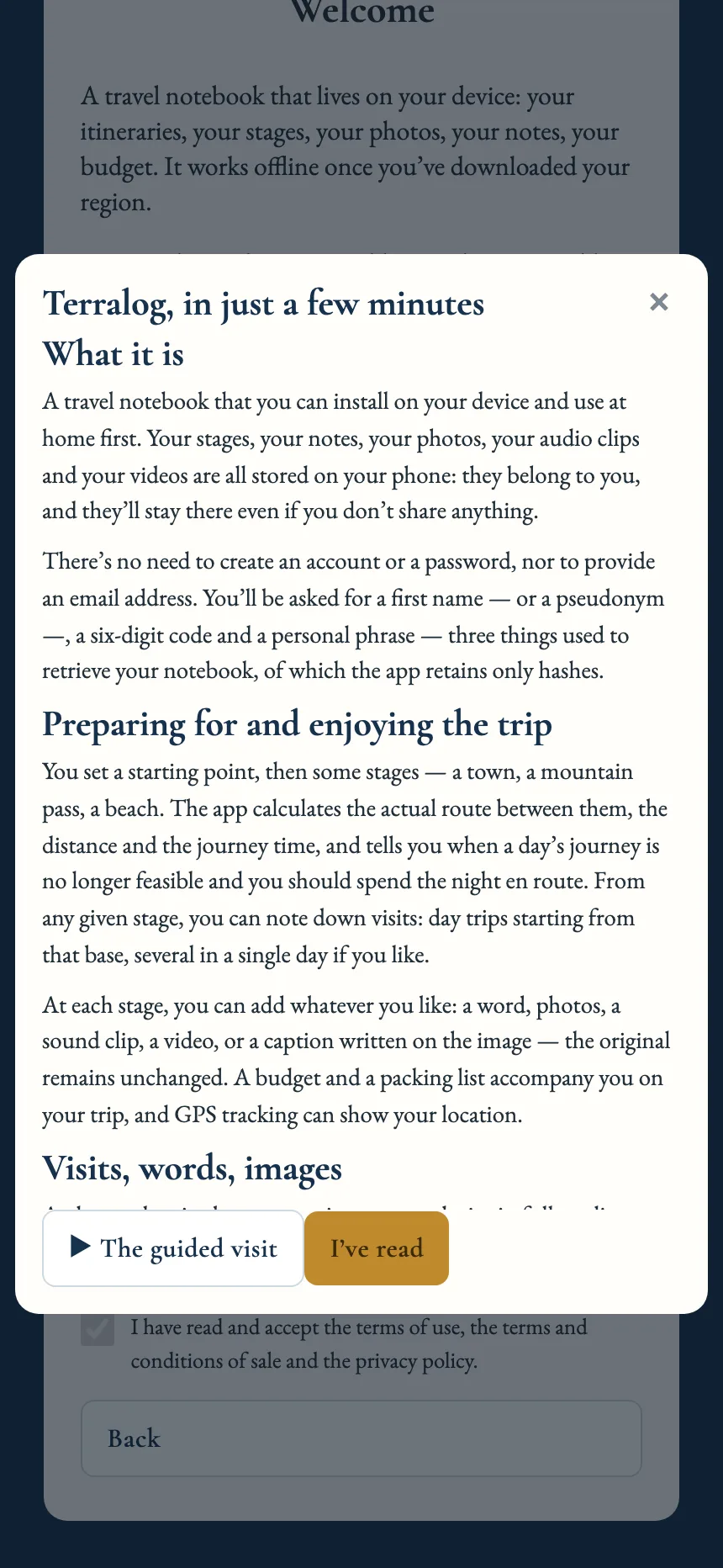
Would you rather see for yourself? ▶ The online guided tour shows every screen and every button, with images and voice commentary, in twenty languages — without needing to install anything.
If installed before 1 January 2027, Terralog will store all your views and documents free of charge, for life.
1 · Getting started
No account needed – in three words
No registration, no password, no email. You choose a first name (or a nickname), a six-digit code and a phrase. These three words are used to encrypt your notebook: they are not stored anywhere and nothing can be retrieved via the cloud. To restore your notebook on another phone, your backup restores it using its own phrase.
Keep them safe: the 🗝️ recovery sheet lets you 📋 copy or 🖨️ print them. If you lose them, no one can give them back to you — not even us. That’s the price you pay for what they protect.
Terralogappears on the home screen (web app) and works offline. The 🔒 unlock button protects access to your history, and 🪫 data saver pauses uploads when data charges are high.
2 · Create a trip
The notebook and its stages
- 🏠 Your trips list your notebooks. Create one usingthe ✨ assistant (it puts together an itinerary based on a city, a base, a trip type and visits) or 🧭 start without a plan.
- 🏁 Set the starting point and its 📅 date.
- ➕ Add a stage: 🔎 search for a place, tap the map, or use your 📍 location (GPS). Terralog plots the actual route, with distances and times (🚗 car · 🚲 bike · 🚶 on foot).
- Choose the stage’s role: 🏕️ stay (base), 📍 stop on the itinerary, or 📎 visit linked to a base. Add a 🌙 night to a stage.
- Fill in the stage details: 📷 photo, 🖼️ gallery, 🎥 video, 🎙️ audio, 📁 file; a ✍️ note about the stage (or written on the photo); a 🖼️ header photo.
- Plan your route: choose a 🔁 loop or a ↩️ return journey; 🪄 ‘Organise shortest route’ suggests an order for you to approve; ⬆️ ‘Publish itinerary’ sends it to your followers.
- ★ Highlight: a suggested point of interest, linked to a stage. You canopen it in Maps or➕ add it to the itinerary — it then becomes its own point (★ marker). A highlight doesn’t exist ‘between’ stages: it’s always linked to one of them.
The viewer
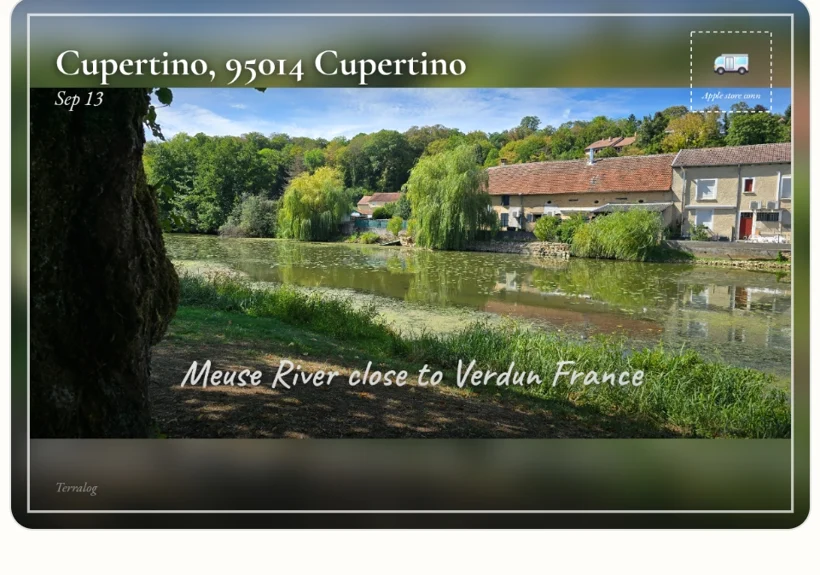
- Tap a photo: it opens full screen. The arrows let you move from one photo to the next; below the image, you’ll see the name of the stage — never the file name.
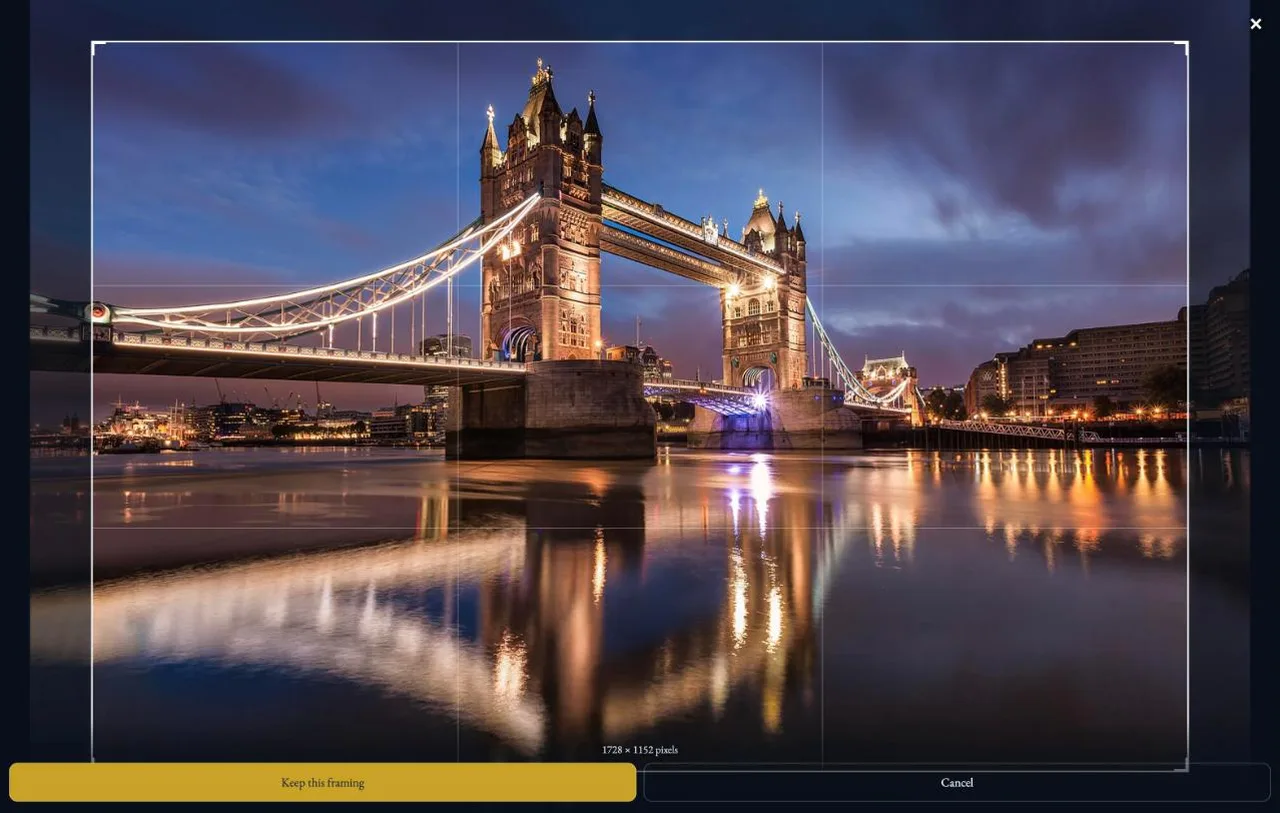
- At the bottom, the icons: ▶ slideshow (⏸ stops it), 📤 share to your apps, ✍️ write a caption on the white strip, ✂️ crop, 🖼️ set it as the header for the stage.
- Writing and cropping only affect the copy sent to your loved ones: the original remains intact on your phone.
3 · On the road
Find your way, see what’s around you, stay offline
- 🧭 Live GPS tracking whilst on the move; 📍 get notified as you approach a stage, and any nearby ★ hidden gem will be highlighted.
- 📡 ‘Around me’ shows useful places nearby: ☕ café, 🍽️ restaurant, 💊 chemist, 🚰 drinking water, 🚻 toilets, 🏕️ campsite, 🚐 motorhome stopover, ⛽ petrol station, 🛒 supermarket, 🥐 bakery, 🏖️ beach, ⛰️ mountain peak, 💦 waterfall, ⛲ spring, 🛖 mountain hut, 👁️ viewpoint, ⭐ attraction, 🏛️ museum, 🎨 artwork, 🧺 picnic spot.
- 📥 Take it offline – download the map before you set off: a 10 km strip along your route (light) or the region you’re viewing (heavier). The level of detail (zoom) determines the file size; 🗑️ Clear frees up space. After that, everything works without a network connection.
- 🔗 Sharing requires an internet connection: sending a link, publishing an update or reading comments is done online. Without a connection, you carry on with your notebook, and you share once the internet is back.
- 💰 Budget & Expenses tracks your spending, with 💱 currency converted automatically. 🌤️ Weather by location.
- Open in another app: 🧭 Google Maps, 🚗 Waze, 📍 Maps (Apple), or your 🗺️ personal map (My Maps).
4 · Share & track
A private, revocable link
- 🔗 Share this notebook: a 👤 link for one person or a 👪 link for everyone. Send via 📲 WhatsApp, ✉️ email, 📋 copy or ⬛ QR code. The link is decrypted in the recipient’s browser; nothing readable remains on the server, and your loved ones don’t need an account or an app to install.
- 📋 Shared links lists what you’ve shared; ✕ Revoke revokes a link (the person loses access). See the Help page for details.
- 🌍 Add my trip to my website; 📤 Publish a moment that updates what your loved ones see in real time.
- 🧳 Trips I’m following · ➕ Follow another trip by 📋 pasting a link or scanning a 📷 QR code.
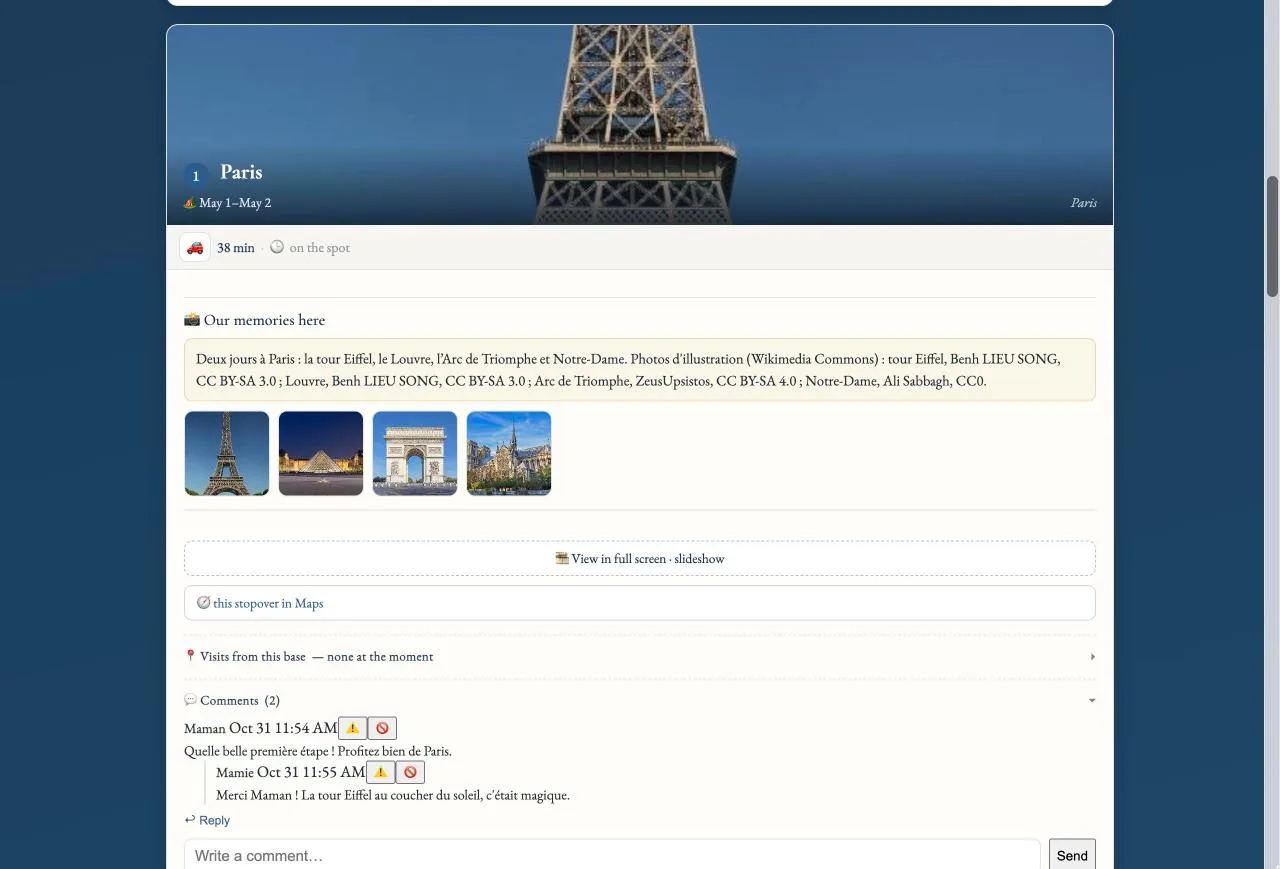
- Your loved ones see the order you’ve chosen and the start date, and they can 💬 comment on a stage; you ↩︎ reply to them under the same stage.
5 · Save & export
Make the trip last
- 📖 Memory album, in 4 designs: 📔 Notebook · 🧭 Adventurer · 🛂 Passport · 🧵 Tapestry. At the end: 📰 generate the journal (lightweight, with linked videos) or 📦 download everything — a complete, standalone archive, a website of your own.
- 📄 Share / PDF (a document with the photos) · 🗺️ Leaflet (illustrated strip, 🖨️ landscape PDF) · 🖼️ Slideshow (evening screening).
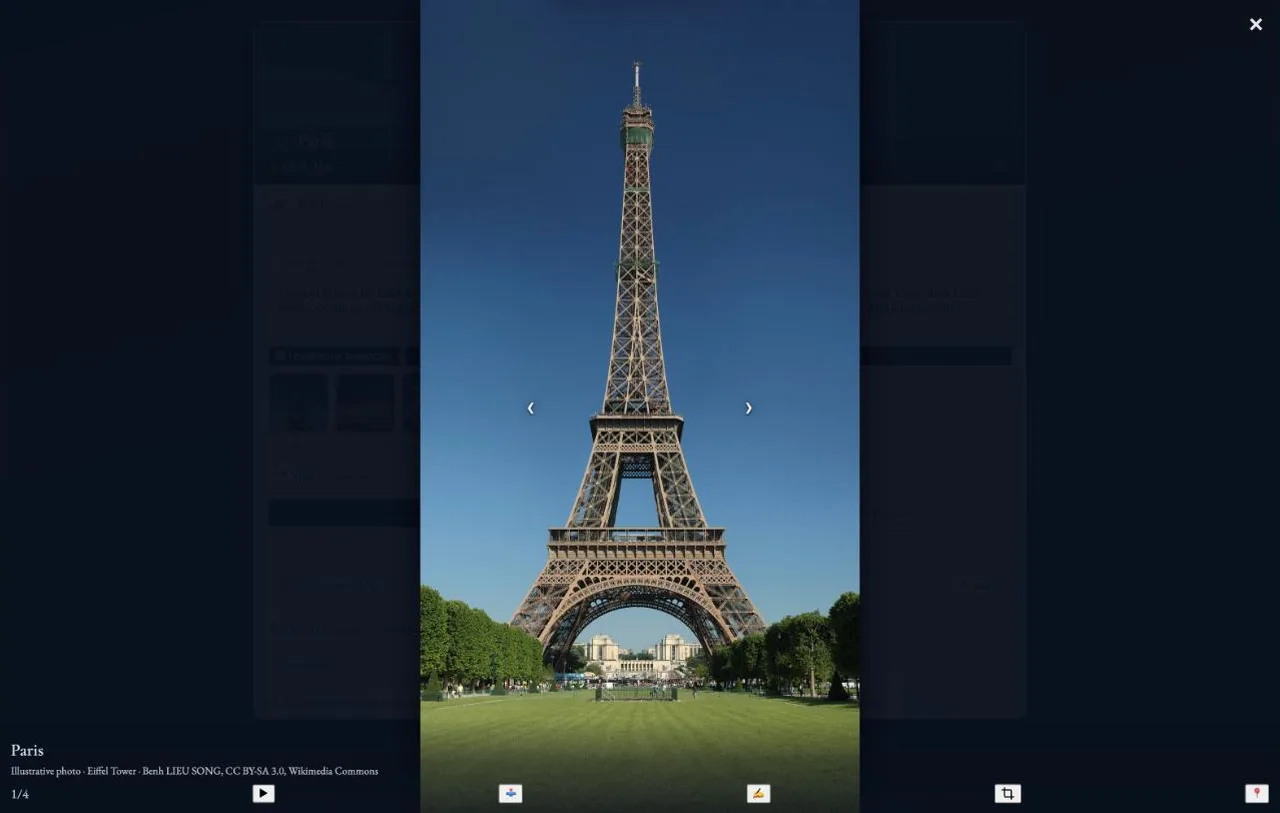
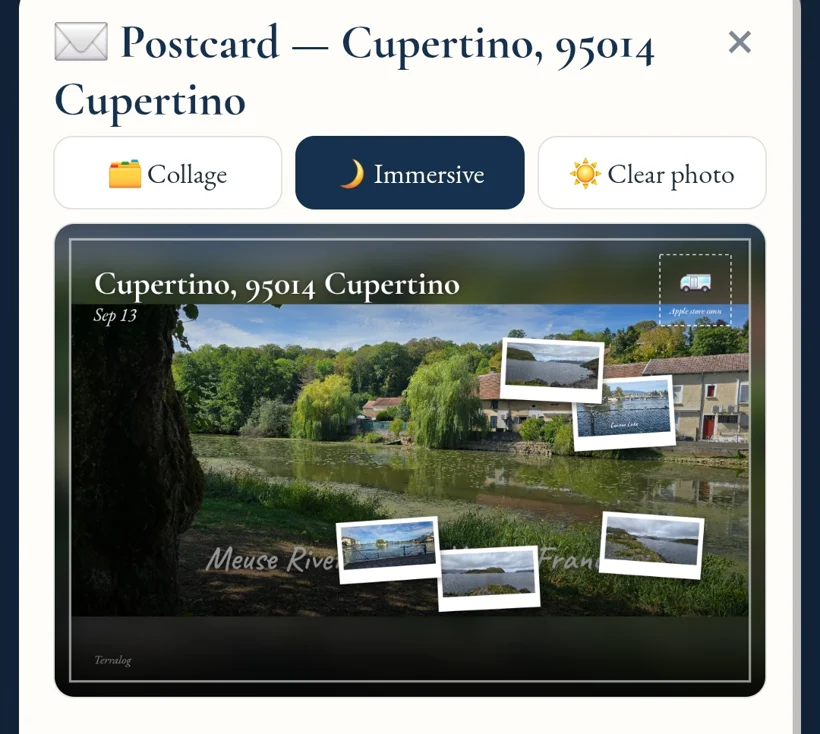
- ✉️ Postcard to share, in three styles: 🗂️ Collage, 🌙 Immersive, ☀️ Sharp photo.
- 📔 Daily journal (Markdown), with your mood for the day (☀️ 🙂 😐 😮💨 🌧️).
- 💾 Exporting your notebook creates a file that you 📥 can import onto another device to access everything. 🎚️ What’s included in the export is precisely what’s exported. It’s all yours.
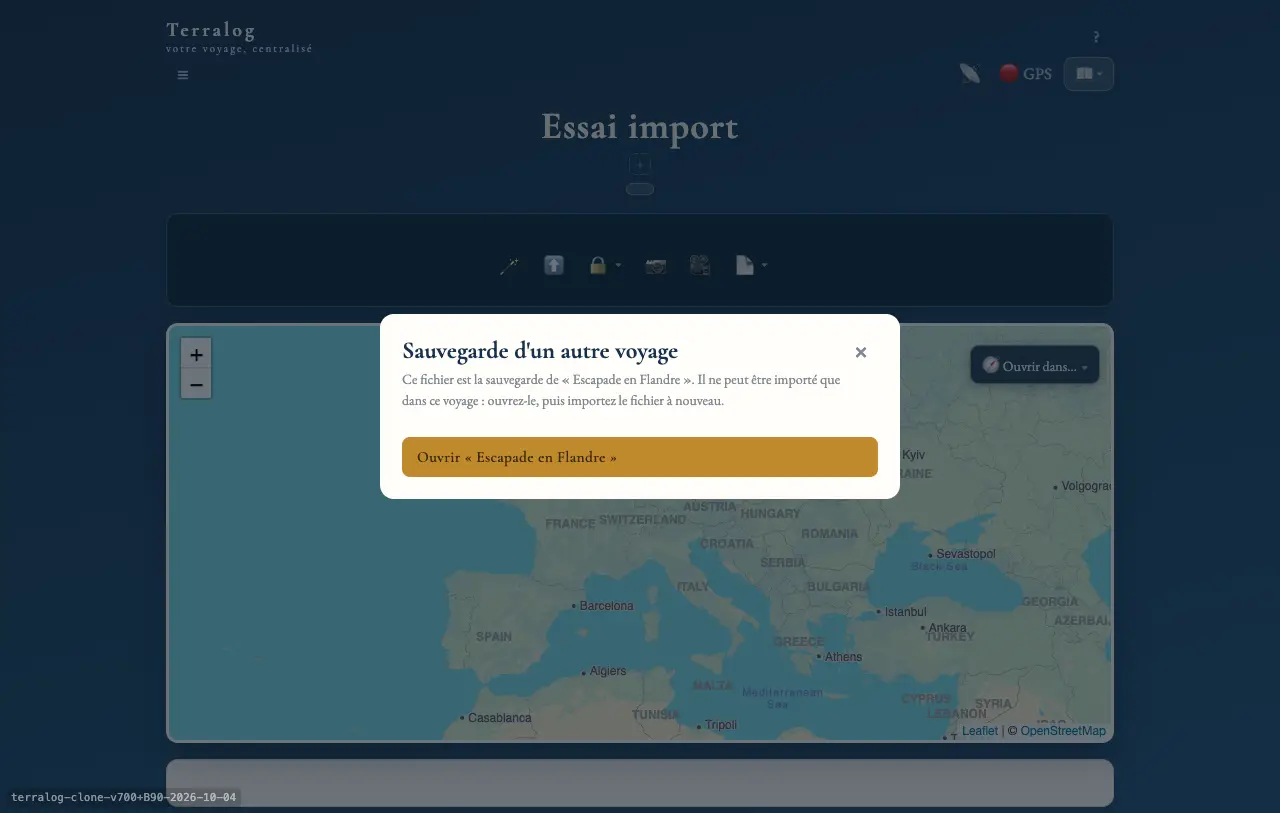
- The backup also includes your edits (text, cropping, header), the order of your stages and the departure date. It only imports into its own trip: otherwise, the app will suggest opening the correct one. After reinstalling, import it, open the suggested trip, then import again: everything will be restored, and the link for your loved ones will remain the same.
- 🛟 Automatic backup: one passphrase, a folder chosen once, and the backup writes itself when you open and leave the app. Everything is encrypted on your device before it is written, and nothing goes through our server. To reopen it on another phone, see “Recover my backup”.
If installed before 1 January 2027, Terralog will store all your views and documents free of charge, for life.
6 · Manage your trips
Organise, archive, delete
- 🗺️ My itineraries: ✏️ rename, 🗑️ delete a trip, 📂 open whichever one you like.
- 📦 Archive creates a backup and can then clear the app. 🧹 Restore deletes what the notebook has stored on the server. 🧨 Total reset starts from scratch on this device.
- 🔐 Vault: future media files are sent encrypted. 📊 The wall helps manage the load when a lot is sent at once.
7 · A different perspective
Four views of the same trip
The button in the top right-hand corner changes how you view your trip: 🧭 Classic, 🗺️ Map, 📍 Track and 📔 In petto. The stages and photos are the same everywhere: whatever you add in one view appears in the others.
If installed before 1 January 2027, Terralog will store all your views and documents free of charge, for life.
🗺️ Map, and the active stage
- Your trip viewed from above, across the whole page: numbered stages, route plotted, and at the bottom the buttons to add photos, sounds and videos.
- On a stage, 📍 Make this stage active: from the Map, whatever you add goes there directly, without being asked again where. Remove active stage deactivates it.
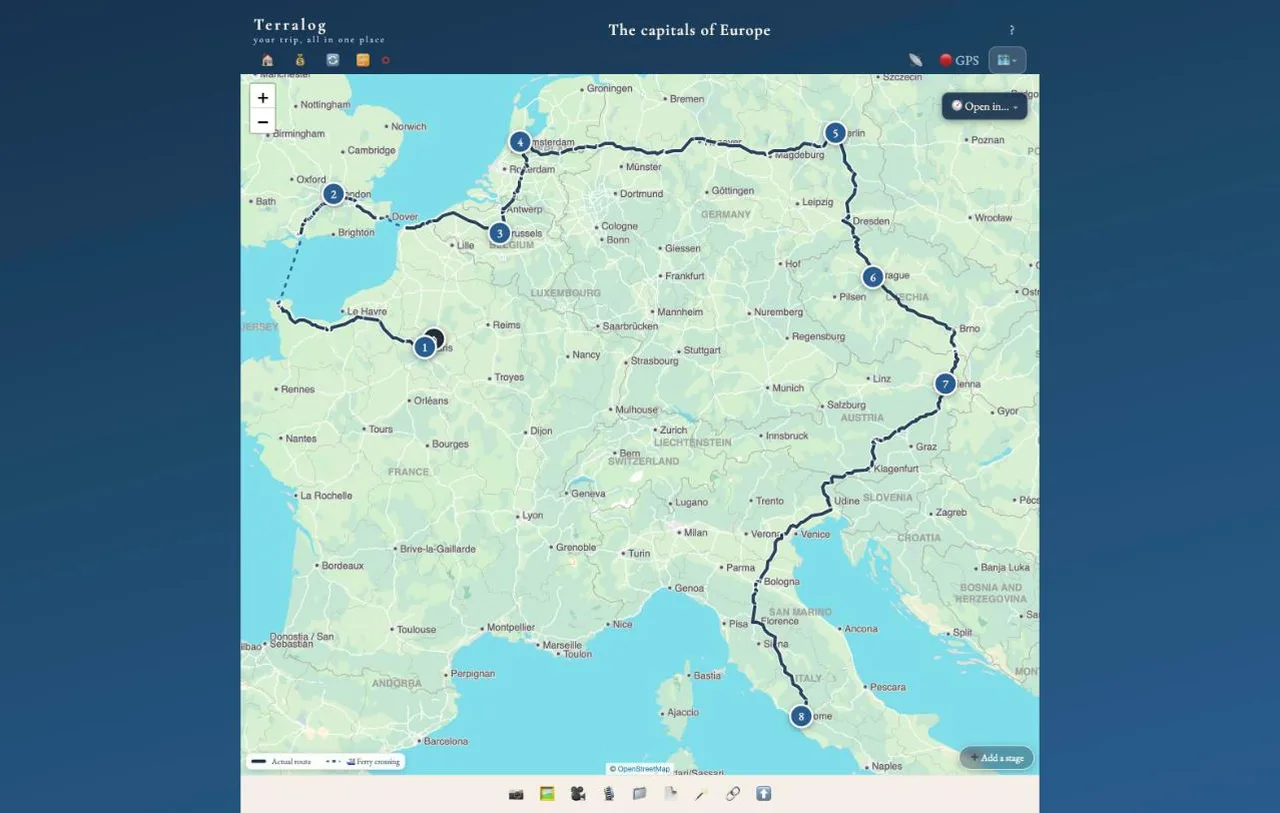
📍 Track: your photos do the work
Upload your photos: those with location data are automatically sorted into the nearest stage, on the correct date.
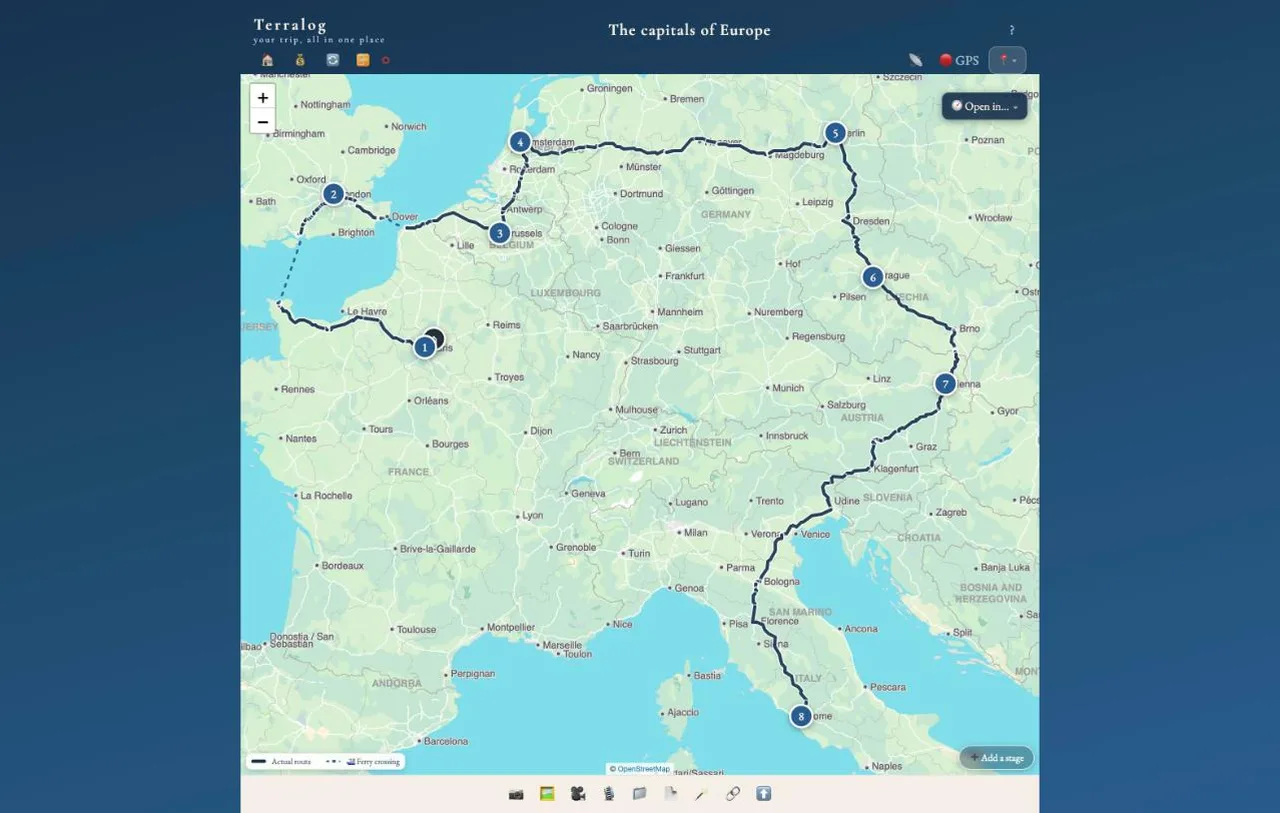
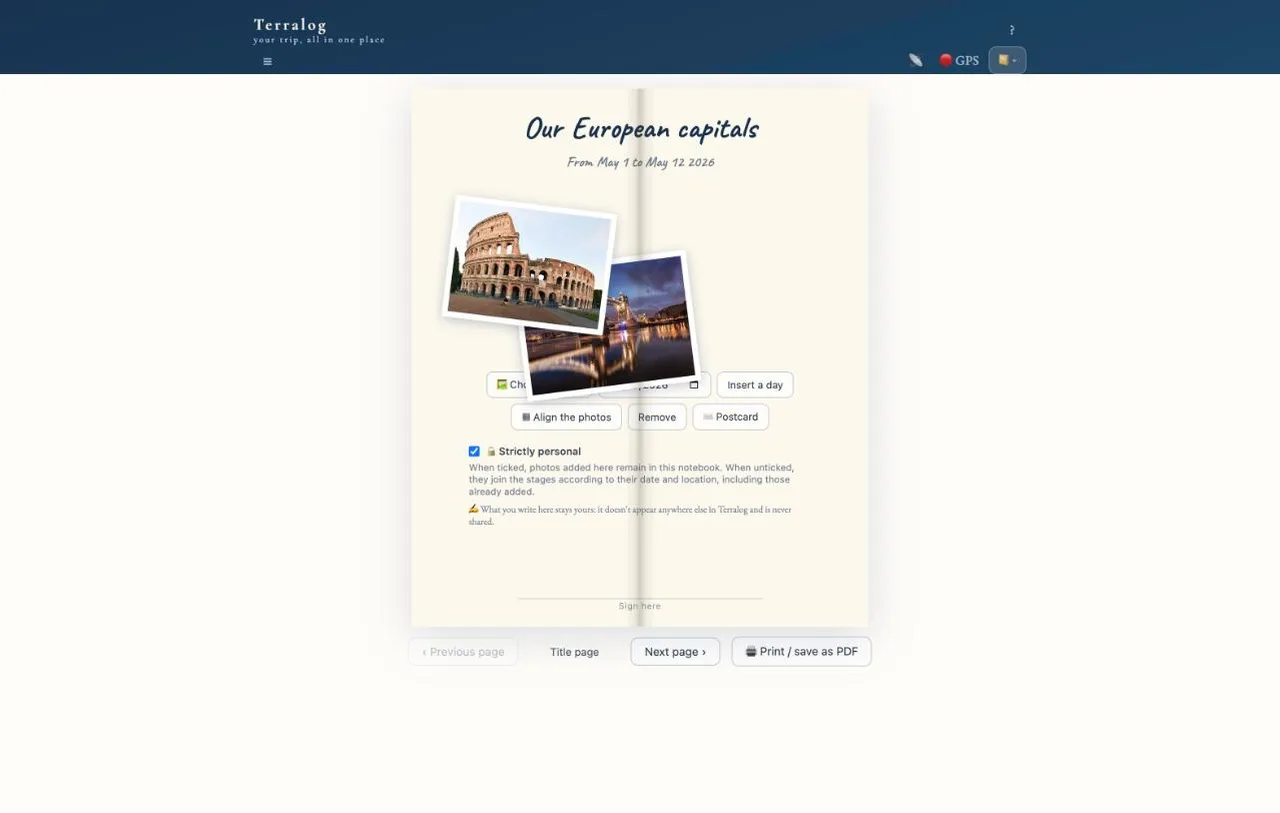
📔 Private notebook: a notebook just for you
- The cover: a title, dates you can edit, photos scattered across the table or neatly organised, and your signature in ink.
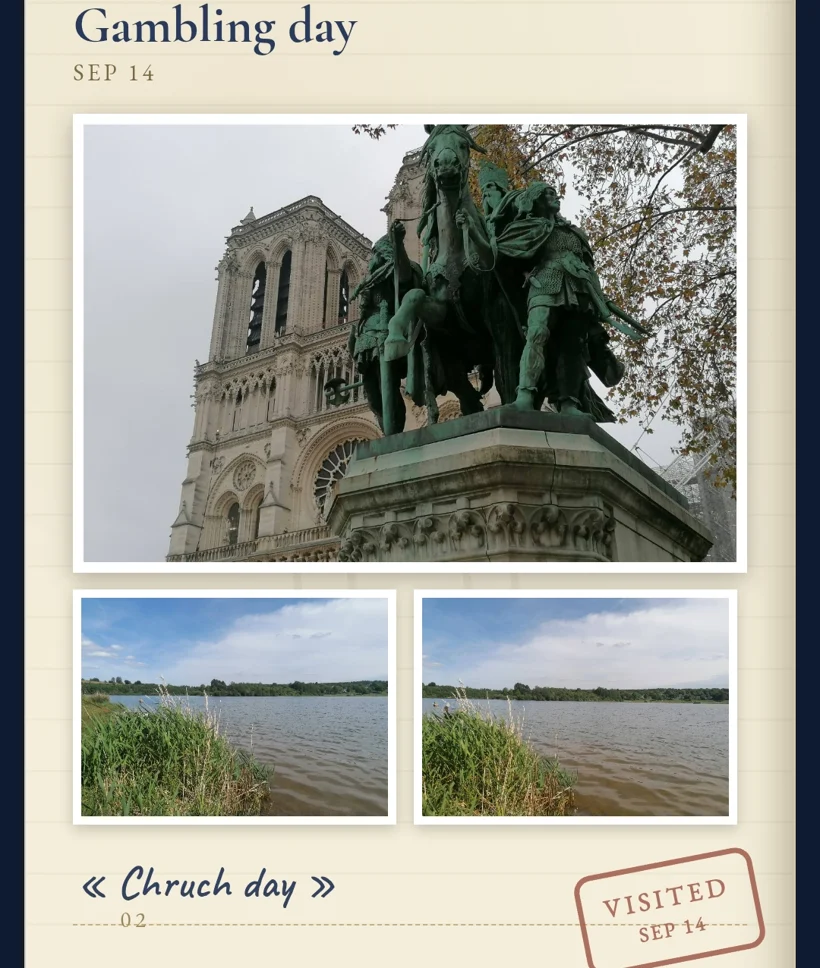
- One day per double page: you write on the left; the day’s photos are on the right. + inserts an extra page, with its own photos.
- 🔒 Strictly personal – once ticked, whatever you add here stays in ‘In petto’. Tap a photo: the viewer opens, with ✍️ and ✂️.
- 💧 Watermark: in the viewer, set a photo as the very pale background for the writing page — each page from the same day can have its own.
- 🖨️ Print / PDF as a book, and ✉️ postcard from a specific day. Saving the file includes In petto with the rest.
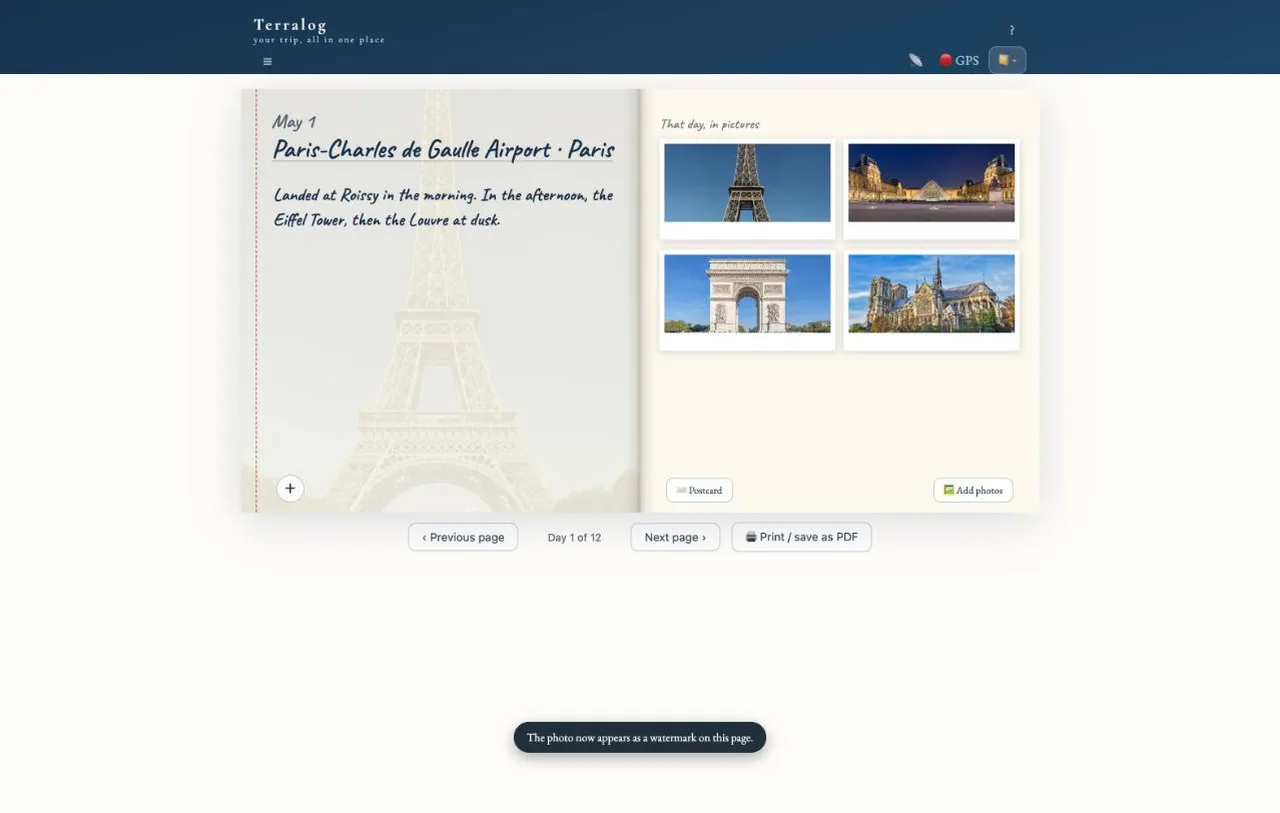
The icon glossary
What each icon means. The recurring ones (🧭, 📍, 🗺️, 📤, 📥) are always accompanied by a word: that’s what determines their meaning.
| ➕ | Add (a stage, a visit, a media file). |
| 🏁 | Start/end point of the journey. |
| 🏕️ | Stay: the stage serves as a base. |
| 📍 | Stopover: a stage along the way. |
| 📎 | Visit linked to a base. |
| 🌙 | Overnight stay at a stage. |
| ✏️ | Edit (name, dates, location, note for the stage). |
| 📷 | Photo to take. |
| 🖼️ | Gallery: a photo from your phone. |
| 🎥 | Video to add. |
| 🎙️ | Sound to record. |
| 📁 | File to attach. |
| ✍️ | Write a note (about the stage or the photo). |
| ★ | Highlight: a suggested place of interest to add to the itinerary. |
| 🔁 | Route type: loop. |
| ↩️ | Route type: out and back. |
| 🪄 | Opt for the shortest route: suggests an order of stages for you to approve. |
| 🔎 | Search for a place / an address. |
| 🧭 | Depending on the word that follows: Itinerary, GPS tracking, open in a navigation app, or the ‘Adventurer’ album template. |
| 📍 | Location / GPS; also the ‘stop’ status of a stage. |
| 🗺️ | Depending on the word: view the itinerary, the leaflet, your personal map (My Maps), ‘map & export’, or ‘my itineraries’. |
| 📡 | Near me: useful points of interest nearby. |
| 📥 | Two options: Take away (download a map area) and Import (reopen an exported notebook) — the word specifies which. |
| 📤 | Share or publish (a moment, a postcard, the website) — depending on the word. |
| 🔗 | Share the notebook. |
| 👤 | A link for one person. |
| 👪 | A link for everyone. |
| 📲 | Send the link via WhatsApp. |
| ✉️ | Send the link via email. |
| 📋 | Copy the link. |
| ⬛ | The link as a QR code. |
| ✕ | Cancel (revoke) a link · close. |
| 📖 | Memory album · discover a place. |
| 📰 | Lightweight journal. |
| 📦 | Complete, standalone archive (your own website). |
| 📄 | PDF. |
| ✉️ | Postcard. |
| 🖼️ | Slideshow. |
| 📔 | Daily journal (Markdown) · ‘Notebook’ album template. |
| 💾 | Export the notebook. |
| 🎚️ | Choose what to include in the export. |
| 💰 | Budget. |
| 💱 | Currency for display. |
| 🗑️ | Delete (on the phone). |
| 🧹 | Restore everything (server-side). |
| 🧨 | Reset (everything). |
| 🔐 | Vault (encrypted media). |
| 🔒 | Lock to open. |
| 🗝️ | Encryption sheet: copy / print your three words. |
| 🧳 | Trips you’re tracking. |
| 🪫 | Data saver (pauses uploads). |
| ✂️ | Crop a photo (the copy only). |
| 💧 | Watermark on an In petto page. |
| 🧭 | View Classique. |
| 🗺️ | View Carte. |
| 📍 | View Trace. |
| 📔 | View In petto. |
| ☕ | Support Terralog (buy a coffee) — never compulsory. |
How to…
…add a stage?
Tap ➕, then search for an address (🔎), tap the map, or select your location (📍). The route will be plotted automatically.
…add a photo, video or audio clip?
Open the stage, tap ➕ Add, then 📷 / 🖼️ / 🎥 / 🎙️ / 📁. Everything is organised within this stage.
…mark an overnight stay?
Tap the 🌙 on the stage.
…turn a stop into a stay, or link a visit?
In the stage, choose its role: 🏕️ stay (base), 📍 stopover, or 📎 visit from a base.
…optimise my itinerary for the shortest route?
🪄 suggests an optimised sequence of stages; you can choose to accept it (or not). It doesn’t delete anything; it simply reorders the stages.
…use the map without a network connection?
Before you set off, 📥 Download the area: a strip along your route or the region you’re looking at. Then everything works offline; 🗑️ Clear frees up space.
…find a café, a chemist’s, some water…?
📡 ‘Near me’ shows useful places nearby.
…share my notebook?
🔗 Share: a link for 👤 one person or for 👪 everyone. Send it via 📲 / ✉️ / 📋 / ⬛. The link unlocks for the recipient.
…remove what I’ve shared?
In 📋 Shared Links, tap ✕ to remove the link. You can also 🧹 Take it all back (delete from the server) — see Help.
…follow someone’s trip?
➕ Follow another trip by 📋 pasting their link or scanning their 📷 QR code.
…save or export my trip?
A 📖 album (4 templates) → 📰 lightweight journal or 📦 standalone archive; a 📄 PDF; a ✉️ postcard; a 🗺️ leaflet; a 🖼️ slideshow; or💾 export the notebook to 📥 import elsewhere. 🎚️ Choose what to take with you.
To keep everything without thinking about it: the 🛟 automatic backup. To reopen it on another phone, see “Recover my backup”.
…changing devices?
Restore your 🛟 backup on your new phone using your backup phrase, or 💾 export the notebook and then 📥 import it. The three words cannot be changed or recovered: make sure you keep a 🗝️ record of them.
To keep everything without thinking about it: the 🛟 automatic backup. To reopen it on another phone, see “Recover my backup”.
…see how it works without installing anything?
Open the online guided visit: every screen, every button, with images and voice guidance, in your language.
…changing the language?
Use the selector at the top of the page. The app is available in twenty languages.